Alloy
Mesh StorageManage

Manage

Fleet operations — API keys, dashboard signals, recording configuration, and edge redaction

Day-to-day fleet ops. This section covers everything you do after the device is recording and before the data hits Mesh Storage:

  • API key rotation — issue, roll, and revoke device API keys without re-provisioning.
  • Dashboard signals — what the devices/ folder shows you at a glance.
  • Recording configuration — discover topics on a robot and set the recorder's topic list.
  • Redact — strip or hash sensitive fields out of MCAP recordings on the device, before they leave your network.

API key rotation

Every device gets its own unique API key on approval. You can rotate a device's key from Mesh Storage without re-provisioning or SSHing into the device.

A key rotation might be needed when:

  • A device has been decommissioned or lost
  • A key may have been exposed (e.g. committed to a repo or shared in logs)
  • Your security policy requires periodic credential rotation

How key rotation works

Key rotation is zero-downtime by design. Instead of revoking the old key immediately, the rotation happens on the device's next sync:

  1. Request a roll from the device's actions menu in the devices/ folder — this sets a flag, but the old key keeps working.
  2. On the device's next sync, the backend issues a new key and the device persists it to disk.
  3. The old key is revoked only after the device confirms the new one.

If you change your mind before the device syncs, you can cancel the pending roll.

Dashboard signals

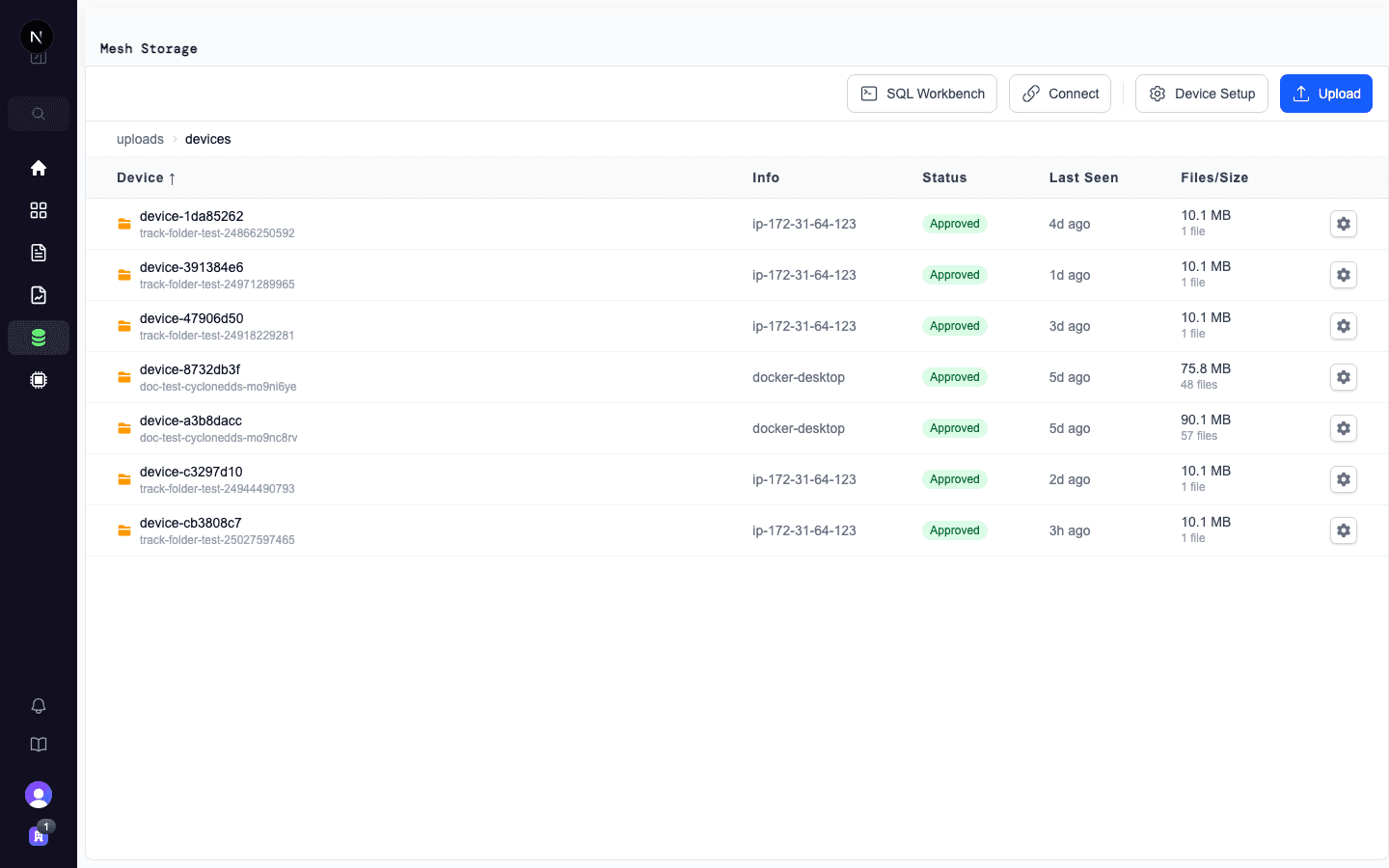
The devices/ folder in Mesh Storage shows at-a-glance status for every device in your org:

ColumnWhat it tells you
DeviceEdge ID and device ID
InfoHostname or machine identifier
StatusPending, Approved, or Rejected
Last SeenWhen the device last synced — a stale timestamp means the device has stopped calling home
Last UploadWhen the device last uploaded a file
Files/SizeTotal number of files uploaded and cumulative size

Devices list showing dashboard signals

Recording configuration

You can configure the recorder to grab everything (ros2 bag record -a) or a specific topic list. Most teams want the topic list — it's the difference between a 5 GB/hr firehose and a 50 MB/hr targeted recording.

For the full schema of edge-manager.yaml and edge-sync.yaml — every supported field, default, and disk-management knob — see the configuration reference.

Discovering topics on your robot

The first step is figuring out what topics exist. Three approaches depending on your situation:

SituationApproachTrade-off
You already have a recording from this robotInspect the MCAP file in AlloyNo live capture required
Robot is running, OK to capture brieflyRecord everything for a few seconds, then inspectFull coverage, but high-bandwidth topics fill disk fast — keep the window short
Robot is running, want minimal footprintRecord only /rosgraph for a few secondsCaptures the full graph (nodes, topics, types, QoS) without any sensor data

The /rosgraph approach is only available when using the Docker image, which publishes /rosgraph at 1 Hz automatically. If you're using the standalone binary, use one of the other two approaches.

Applying the topic list

Once you have the topics you want to record, apply them in the place that matches your setup:

  • Docker — open the device folder in Mesh Storage, click Settings, and edit the recorder topic list. The next time the device syncs (within poll_secs, default 15 s), the new config takes effect — no SSH or container restart required.
  • Binary track-folder — Alloy isn't running the recorder for you in this mode, so update your recorder's own config (e.g. ros2 bag record -aros2 bag record /odom /tf /diagnostics).

Most teams iterate by recording everything for a short window, inspecting the file in Alloy, then narrowing the topic list once they see what's useful.

On this page