
Browse
Navigate files, inspect recordings, replay missions, and monitor device health
Mesh Storage shows everything your org has uploaded — web uploads, device uploads, and the queryable tables built from them — in one file browser.
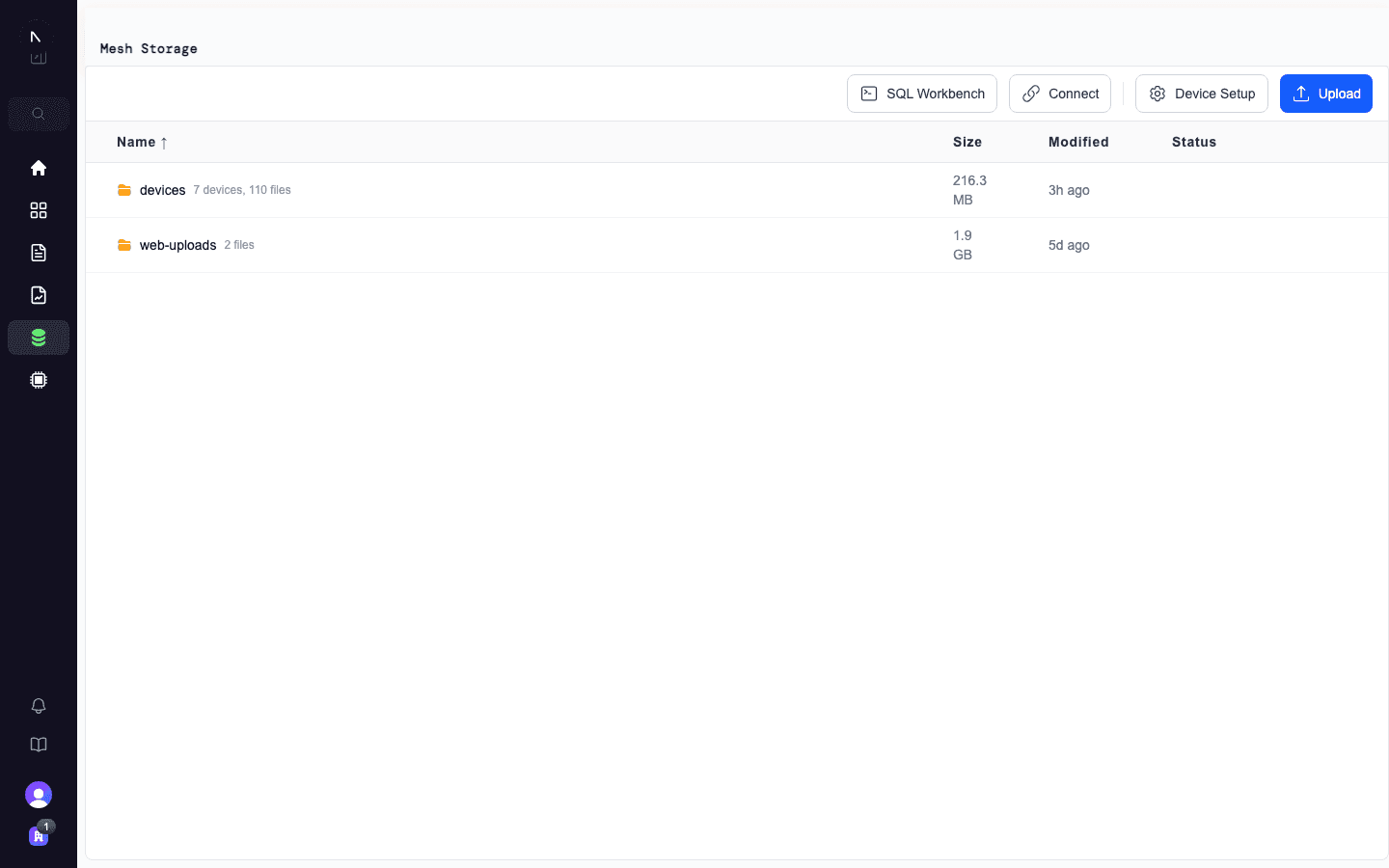
Folder layout
You'll see a devices/ folder at the top of the browser, alongside any files you've dropped in via the web uploader. Web uploads sit at the root; everything pushed up by a registered device lives inside devices/<device-id>/.
Click into a folder to see what's inside. Folders show their aggregate size and a count of contained files.
Status badges
Every file shows a status badge that tells you what state it's in:
| Badge | What it means |
|---|---|
| Queued | The file has landed in object storage and is waiting to be processed |
| Processing | Alloy is parsing the MCAP and building queryable tables |
| Ready | The file is queryable in SQL Workbench and external Iceberg clients |
| Failed | Something went wrong; check the row for the error |
Replay and Inspect work as soon as a file lands — you don't have to wait for processing to finish.
Row actions
Click the actions menu on any file row:
- Replay — open the file in the 3D replay viewer
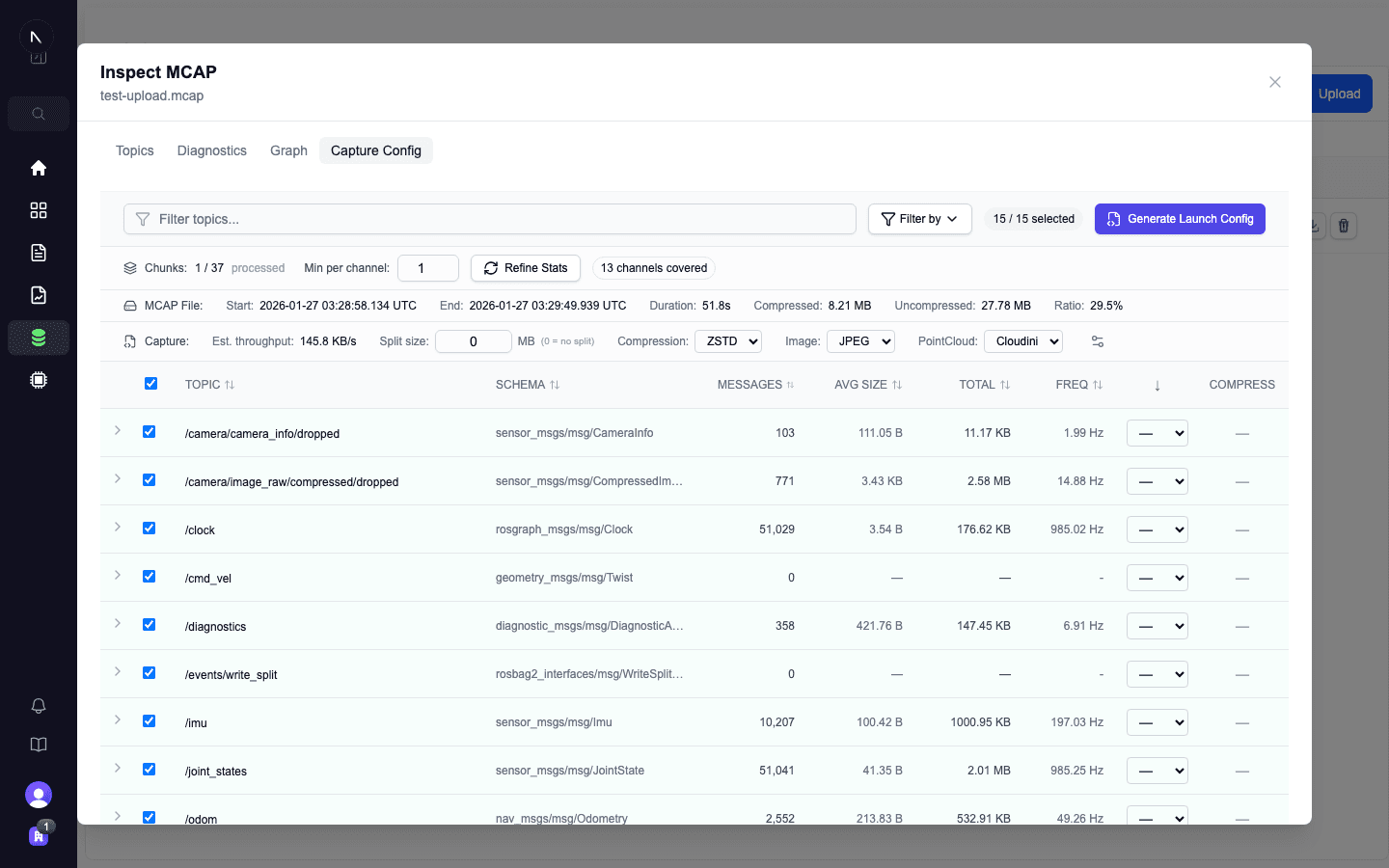
- Inspect — view topics, schemas, message counts, and time range
- Download — generate a signed download URL (valid for 7 days)
- Delete — remove the file from object storage and Iceberg tables
For device folders, you also get Settings — open the device-specific configuration.
Inspect
Click Inspect on any MCAP file to see what's inside without downloading it: topics, message counts, schemas, and time range. Useful for quickly checking what data a recording contains.
Replay
Click Replay on any MCAP file to open it in the 3D replay viewer. The viewer renders sensor data, robot poses, and other visualisable topics directly in the browser — no local tooling required.
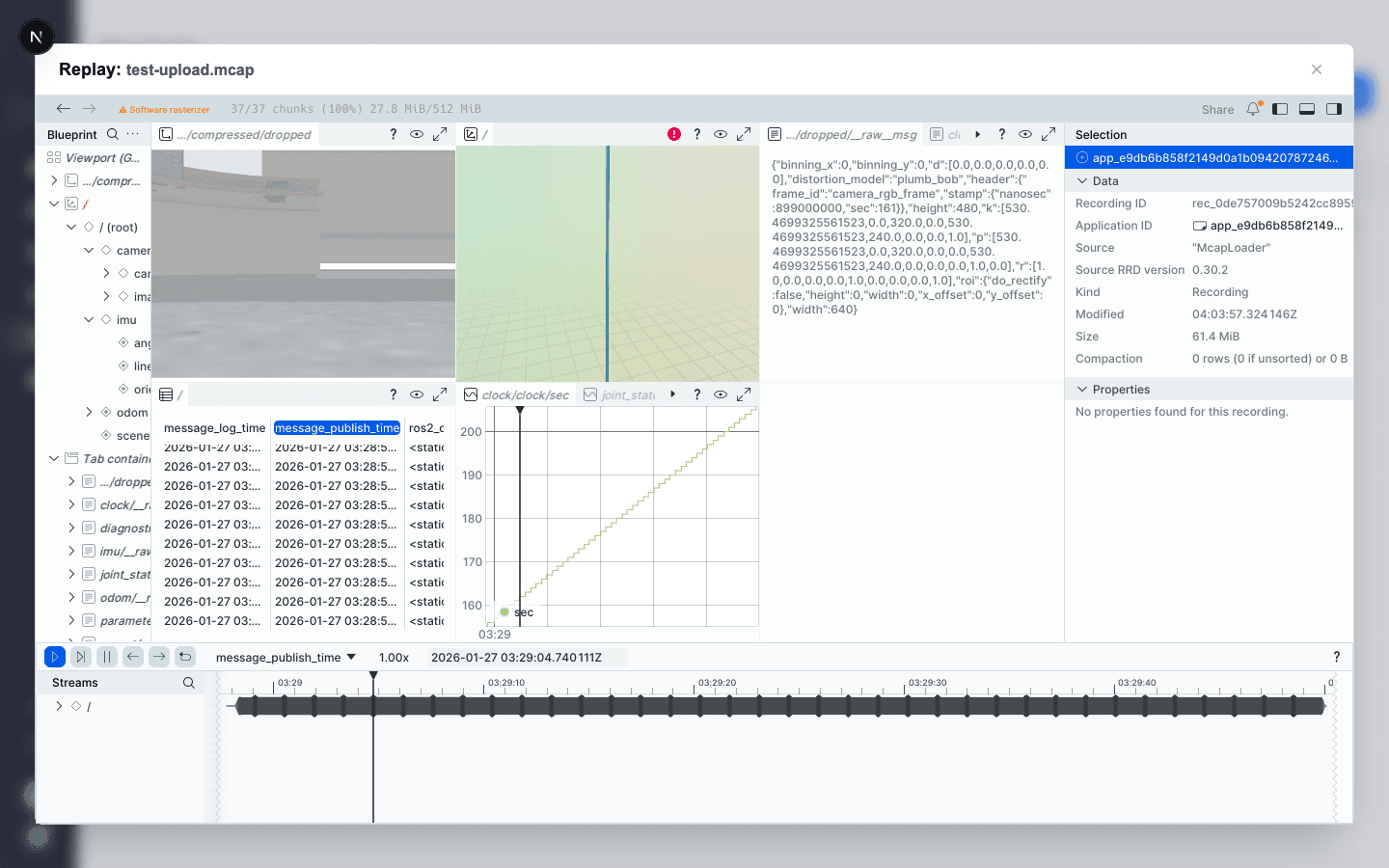
This is the same replay viewer used for mission recordings. For a single MCAP file, select Suggest Layout to get a suggested set of 3D, camera, map, log, and time-series views based on the recording's topics. Review the selected topics, apply the layout, and inspect the result before selecting Save now to name and reuse it on later files.
You can also arrange panels manually. From a mission, ask Alloy AI to open Replay at a specific moment with the right panels already laid out — see Using the Chat → Replay.
Browsing a single device's files
Click into devices/<device-id>/ to see only that device's uploads. The folder header shows device-specific signals — hostname, status (Pending / Approved / Rejected), last seen, total files and size.
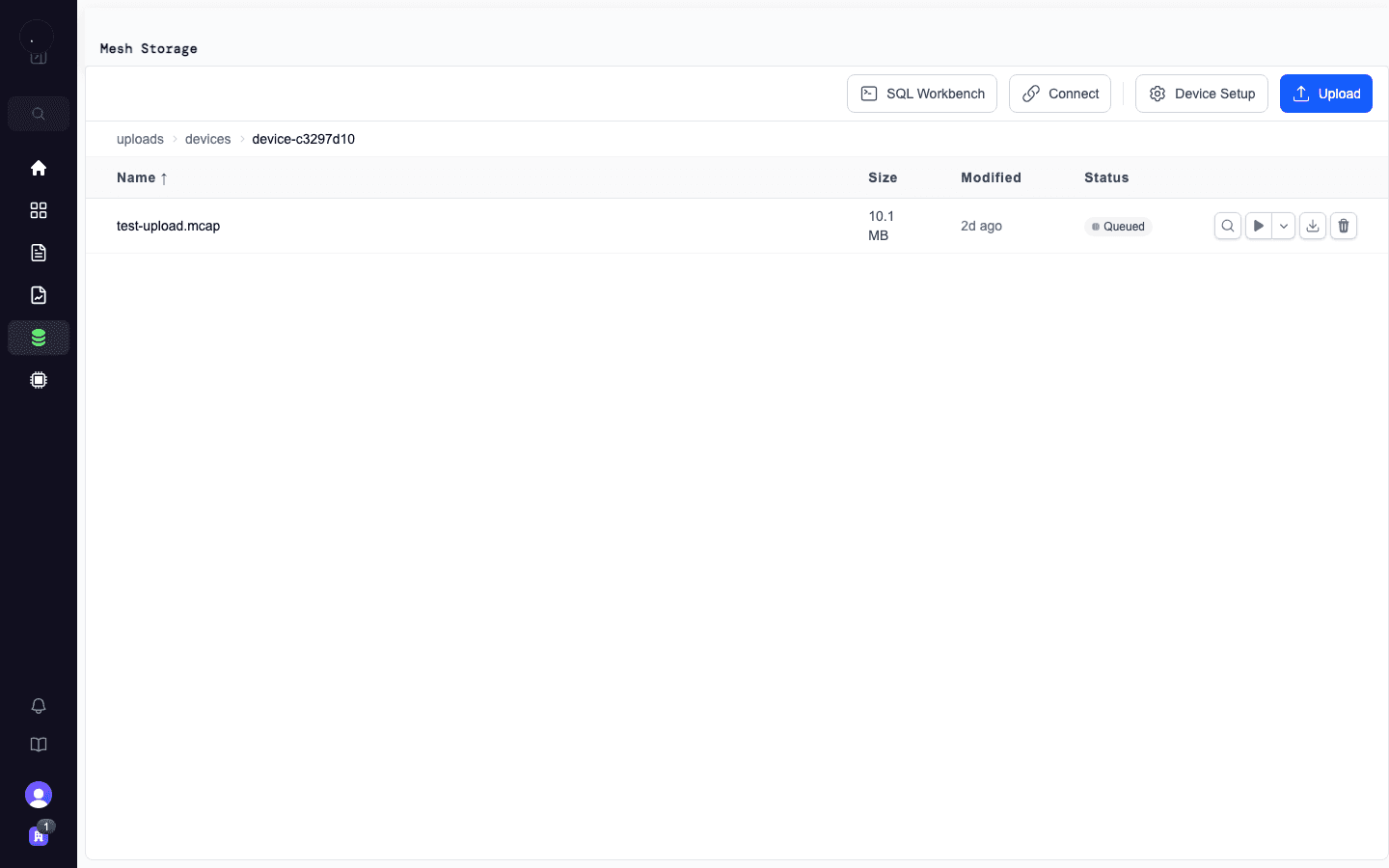
From here you can also approve a pending device, roll its API key, or open device-level diagnostics and graph views.
ROS2 diagnostics
In a device folder, click Diagnostics to view health metrics extracted from MCAP files uploaded by that device.
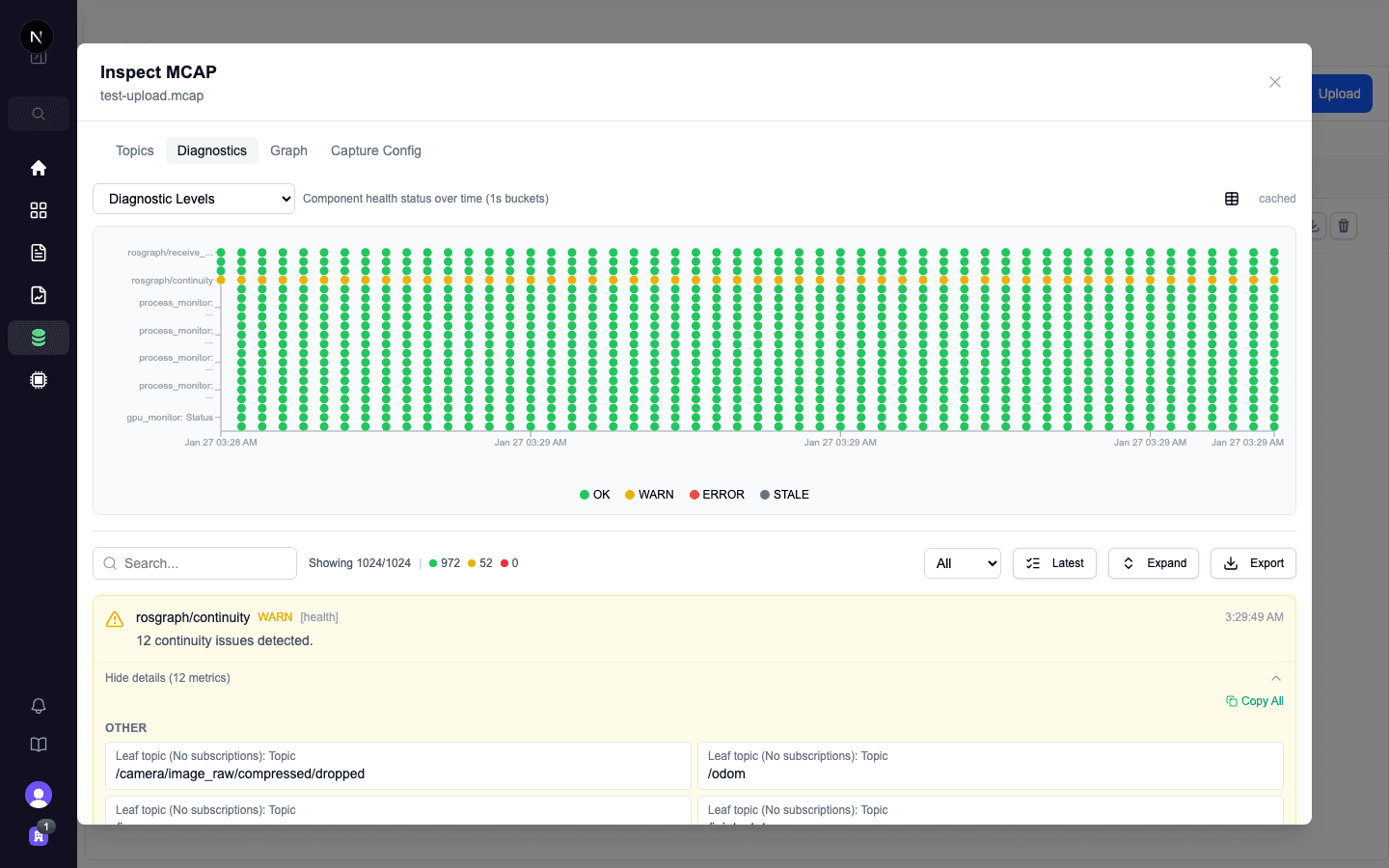
Diagnostic levels (OK, WARN, ERROR, STALE) are plotted as a timeline so you can correlate device health with mission events. The bottom panel shows individual diagnostic messages with details.
Diagnostics requires that your robot records system health data to a standard ROS2 diagnostic topic during the mission. If the topic is absent, the diagnostics view shows no data.
ROS graph
Click ROS Graph on a recording to visualise the node and topic graph. This shows which ROS nodes were active, what topics they published and subscribed to, and how data flowed through the system.
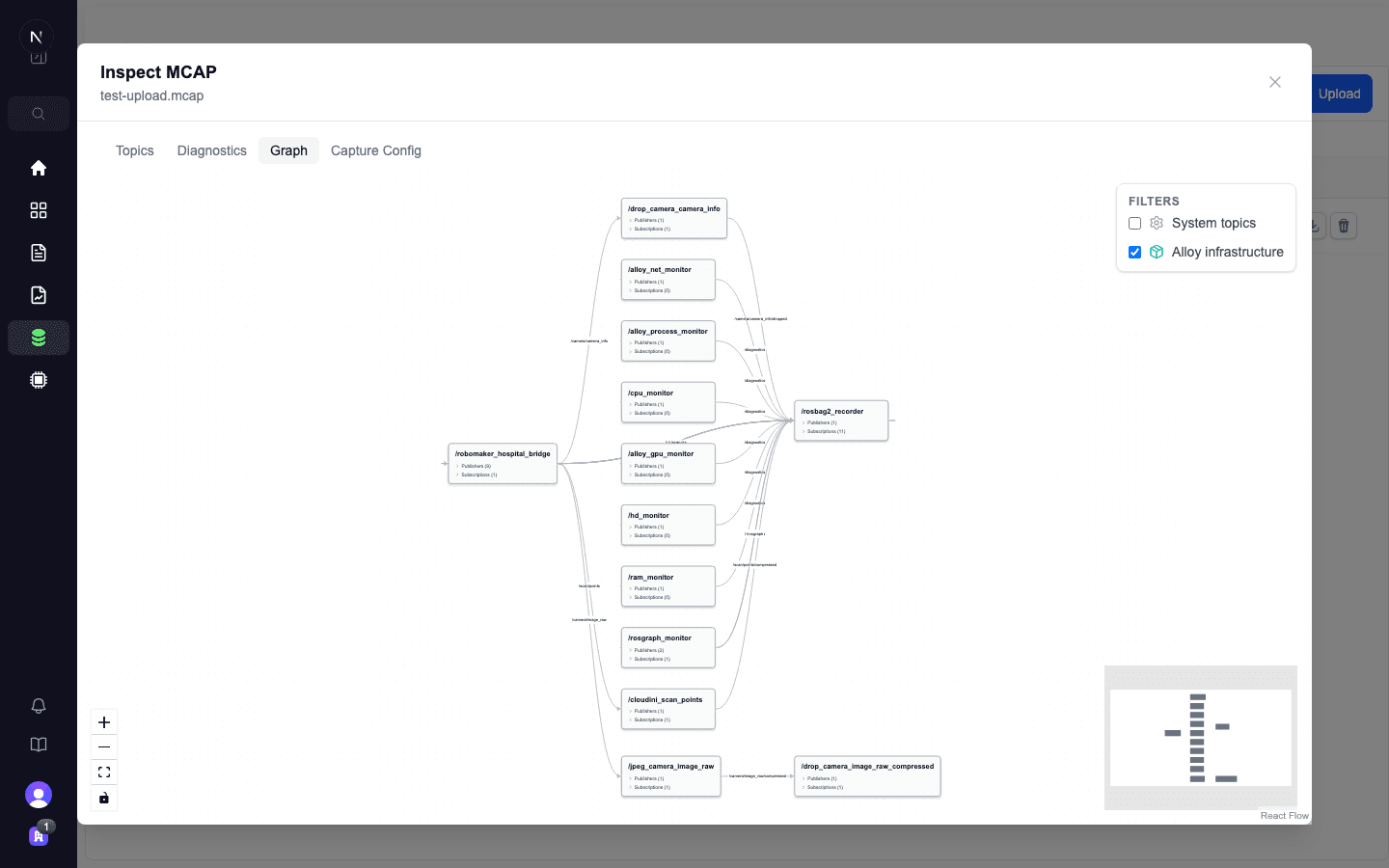
Use the Filters panel to toggle system topics and Alloy infrastructure nodes. The graph shows node counts, topic counts, and connection counts at the bottom.
Useful for verifying your robot's configuration matches expectations — especially when debugging missing topics or unexpected node behaviour.