Alloy
Mesh StorageIngest

Docker

Deploy the edge client as a Docker container

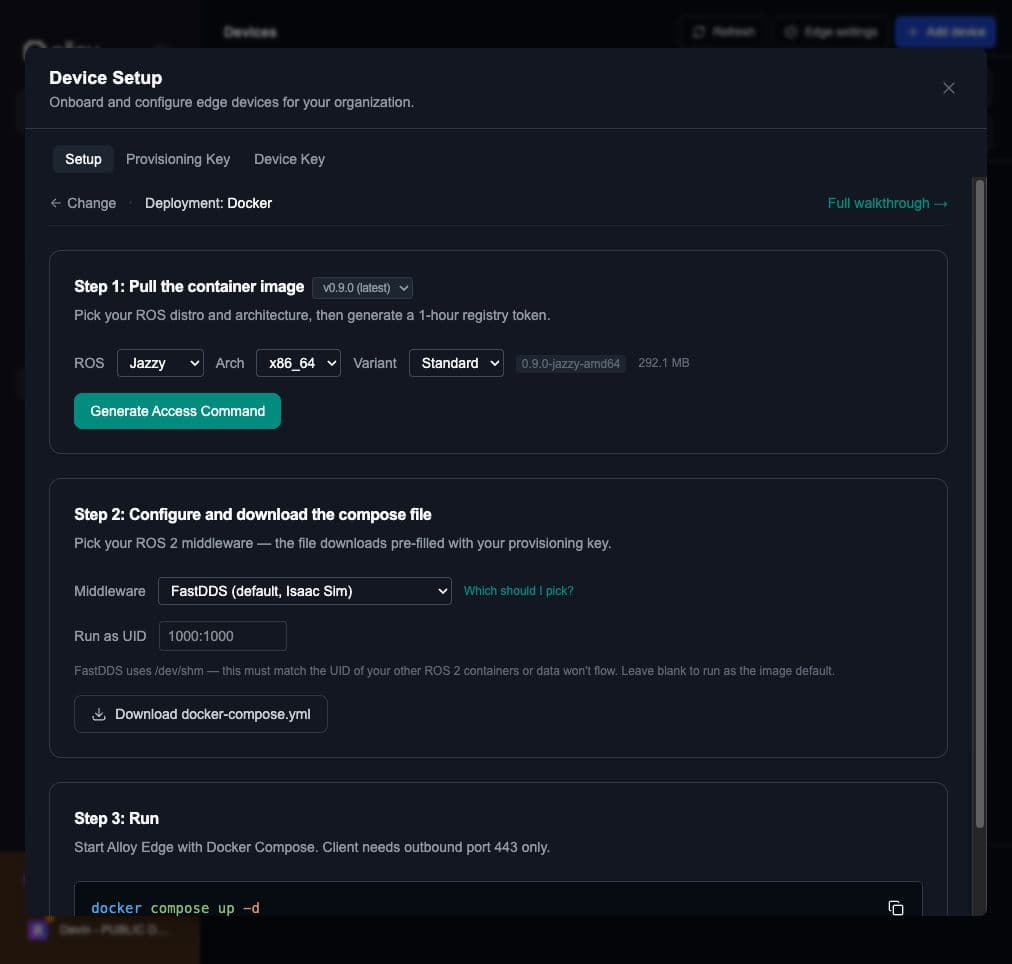
Open Mesh Storage → Device Setup → and select Docker to run the interactive flow with pre-filled tokens and compose files.

The client needs outbound access on port 443 (HTTPS) only. No inbound ports required.

Step 1: Pull the container image

In the Device Setup modal, select Docker, then pick your ROS distro (Jazzy/Humble), architecture (x86_64/ARM64), and optional variant. Click Generate Access Command to get a short-lived token (1 hour) for the private registry.

Authenticate with the registry:

echo "<TOKEN>" | docker login \
  -u oauth2accesstoken \
  --password-stdin \
  australia-southeast1-docker.pkg.dev

Then pull the image:

docker pull australia-southeast1-docker.pkg.dev/alloy-version-0/alloy-edge/alloy-edge:<TAG>

Step 2: Configure and download the compose file

In the Download Compose File section of the Device Setup modal, pick your middleware and download:

  1. Leave Middleware on the default, FastDDS.
  2. If alloy-edge will share topics with other ROS 2 containers on the same host, enter their UID in Run as UID (e.g. 1000:1000). Otherwise leave it blank.
  3. Click Download docker-compose.yml.

Required for Isaac Sim. Highest throughput via shared memory.

UID must match. FastDDS uses /dev/shm internally — if alloy-edge runs as a different UID than your other ROS 2 containers, topics discover but data silently never flows. When in doubt, run echo "$(id -u):$(id -g)" as the user that owns those containers and paste the result into Run as UID.

  1. Set Middleware to CycloneDDS.
  2. Click Download docker-compose.yml.

No UID matching needed. Works without ipc: host — good for rootless Docker and Kubernetes.

  1. Set Middleware to Zenoh.
  2. Click Download docker-compose.yml.

The downloaded file includes a zenoh-router sidecar service automatically. Best for edge / WAN / multi-robot fleets.

Step 3: Run

docker compose up -d

Your device will appear in Mesh Storage under the devices/ folder as Pending.

Step 4: Approve the device

  1. Open the devices/ folder in Mesh Storage
  2. Find the new device and click Approve
  3. Alloy issues the device a permanent API key
  4. The client picks up the new key on its next sync — no manual key distribution needed

What happens next

After approval, the edge client picks up its configuration and starts recording. Within a minute or two you should see:

  • Last seen updating as the client syncs
  • Files appearing in the device's folder in Mesh Storage

You can then replay, inspect, or query any uploaded MCAP file directly from Mesh Storage.

ROS domain ID

ROS_DOMAIN_ID (default 0) isolates ROS 2 traffic on the same network. Set it when running multiple robots on the same LAN, or co-locating dev and prod stacks on one host:

ROS_DOMAIN_ID=42 docker compose up -d

All containers that need to communicate must share the same domain ID and the same middleware.

Managing the container

docker compose logs -f    # view logs
docker compose down       # stop
docker compose restart    # restart

Folder structure (mounted volumes):

data/
├── config/   # client config, provisioning key
└── data/     # recorded bags, uploaded files

On this page