
Configure
Inspect and change Alloy Edge settings
Set up Alloy Edge first. The link
command writes the initial configuration, so you do not need to edit YAML for
a standard Track Folder installation.
Inspect and validate
Open Mesh Storage → Devices in Alloy. Select a device to inspect its activity, last upload, and file count. Use Device health for more detail.
To change your organization's Edge configuration, select Edge settings on that page. Select Review & save to validate your changes before applying them. These settings are stored for the organization.
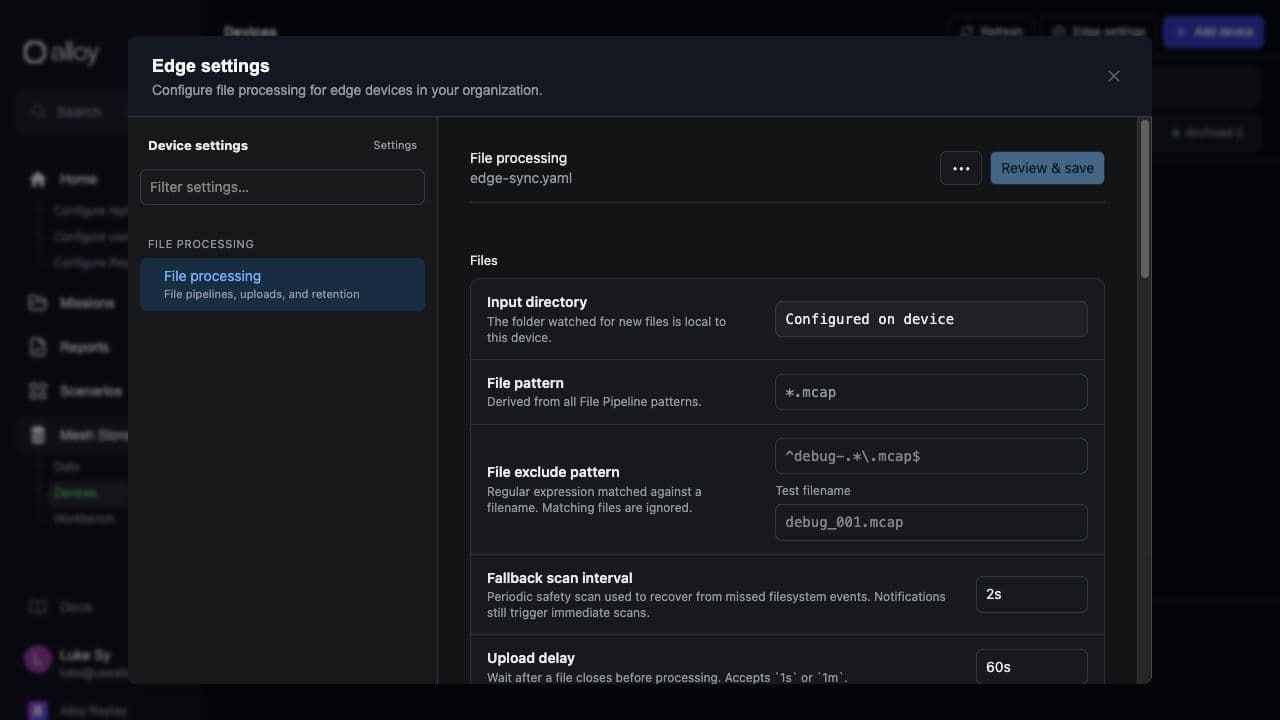
Newly linked devices manage their process configuration locally. Changes saved in Edge settings do not apply to those devices until you enable remote configuration on each device. For the default user installation, run:
alloy-edge config --user enable-remoteRestart Alloy Edge. If you linked with --local or --system, use that scope
instead of --user. In Devices → Device health → Configuration deployment,
wait for deployed healthy before relying on the saved settings. Until then,
the local configuration can continue uploading original recordings.
The recordings folder belongs to each device, so change it on the device as described below.
Change the recordings folder
To track a different existing folder:
alloy-edge config --user set track-folder /data/new-recordingsRestart Alloy Edge after changing the tracked folder. The Configuration reference covers configuration files, installation scopes, and migration from older clients.
Redact MCAP recordings
Alloy Edge can remove topics or sensitive fields on the device before upload. In Mesh Storage → Devices → Edge settings, open File processing → File Pipelines, find the MCAP pipeline, and select Add processing step. Give it a description, then select Edit rules.
In the rule editor:
- Topics to include: Add
*to Allow to keep all topics except those in Deny, or list only the topics to keep. An empty Allow list passes no topics. Add/audio/**to Deny to drop audio topics. - Channel rules: Select Add to match a topic, then choose Remove to drop its messages or Edit fields to redact, hash, or replace field values.
- Metadata field rules: Select Record to change sensitive MCAP metadata.
Use Field suggestions and Preview sample to check the rules against a representative recording.
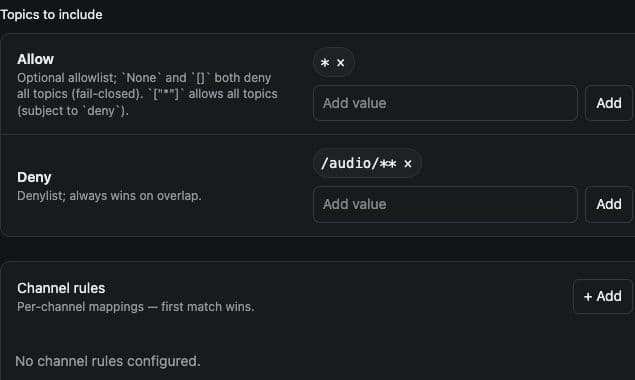
Return to File processing. Turn on Upload processed file for the step and turn off Upload original under Original. Otherwise, the unredacted recording also uploads. Select Review & save, then confirm Configuration deployment is deployed healthy for the device. Check a representative uploaded recording before sending sensitive data.
Older installations
If your device runs an older Alloy Edge release, select it in the Track Folder guide. Its setup commands may differ from the current release.